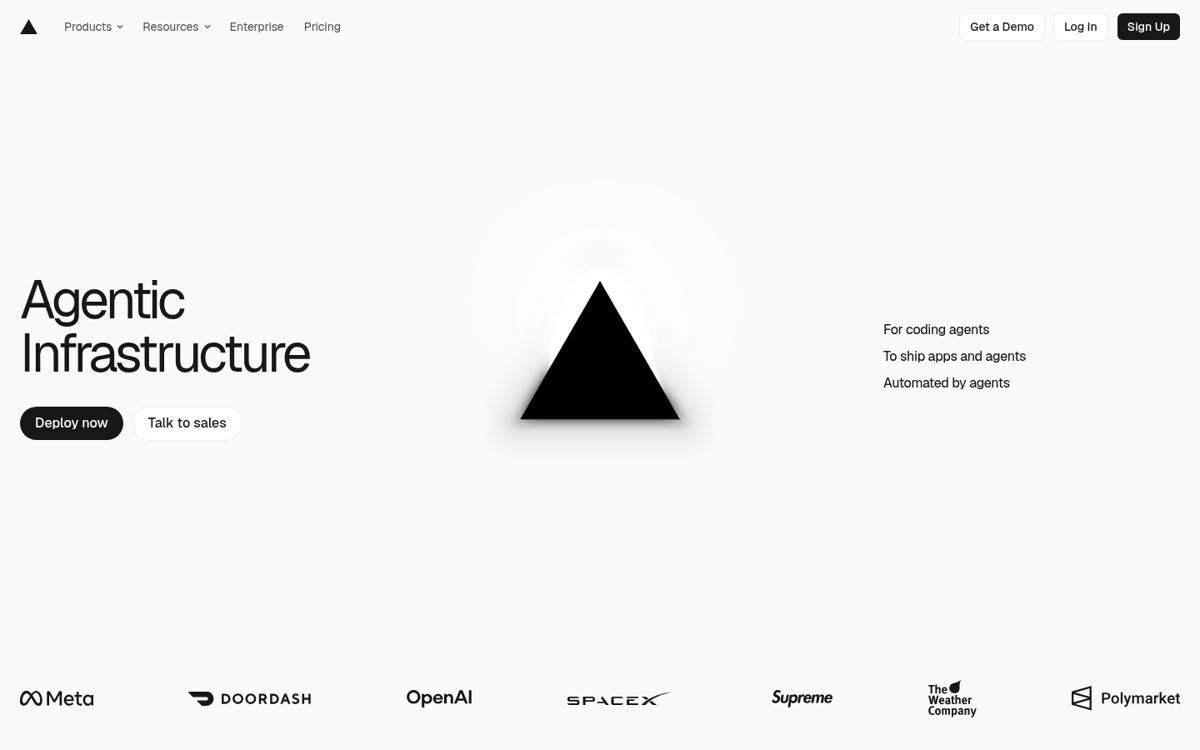
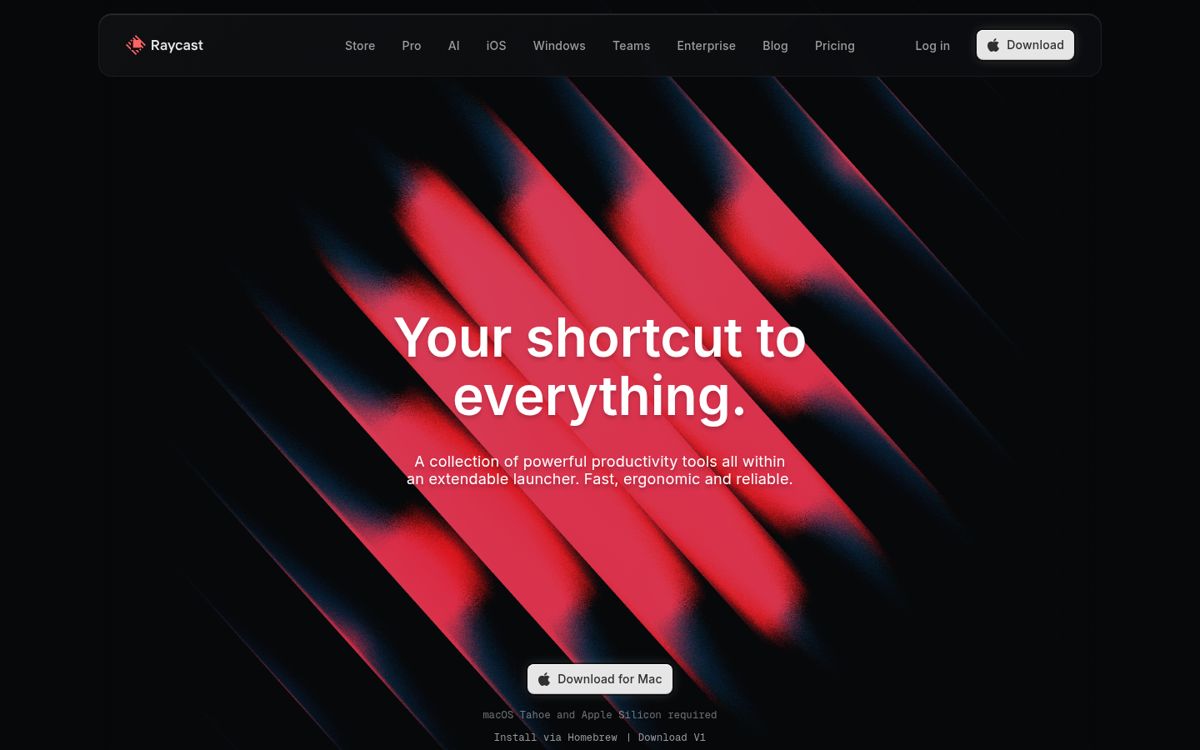
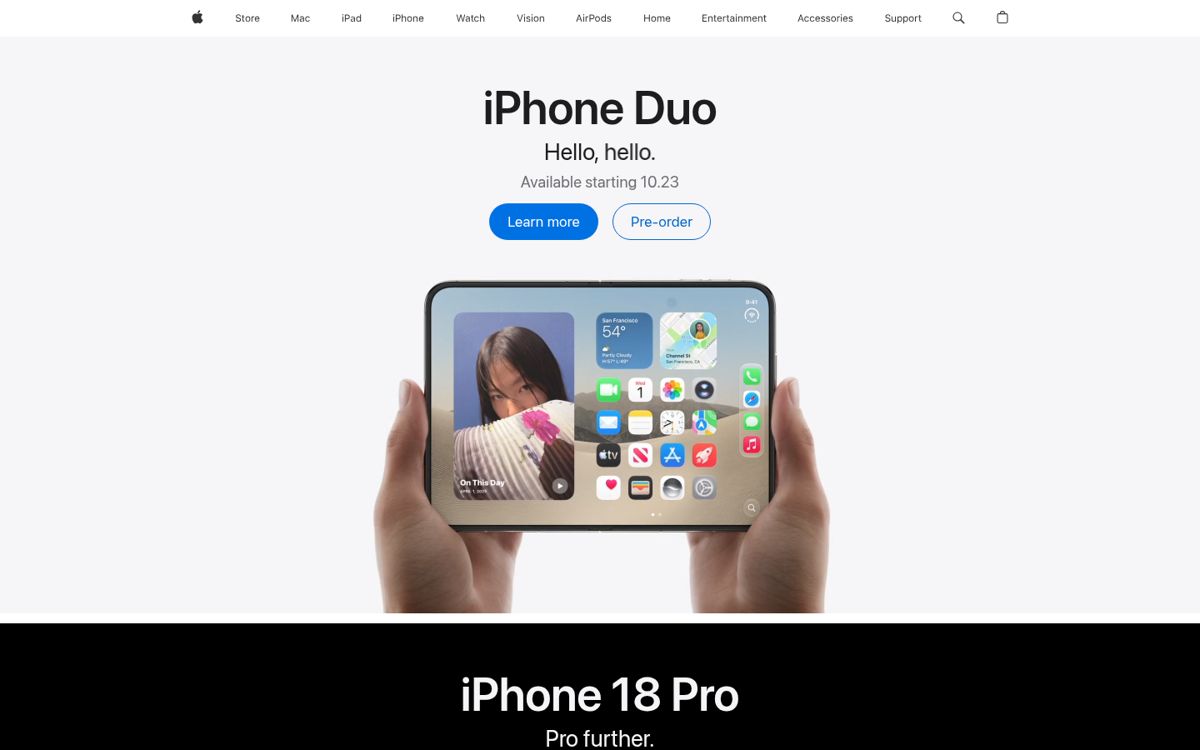
Product-as-hero 6
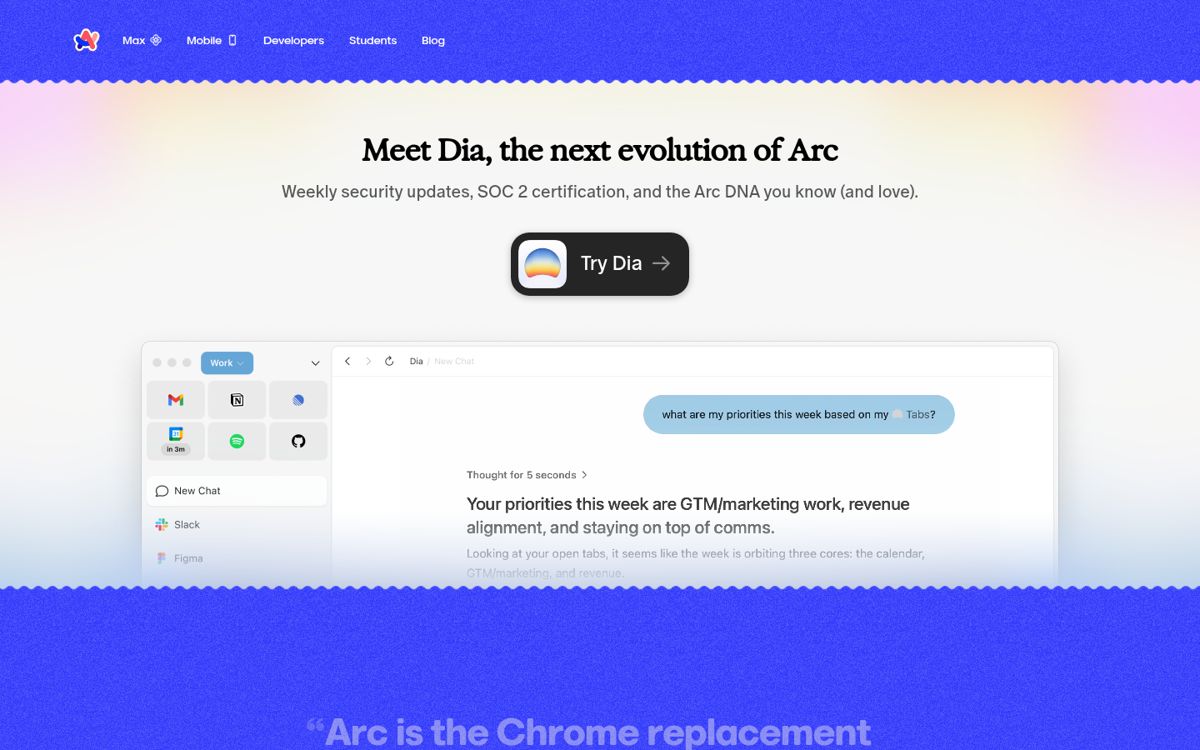
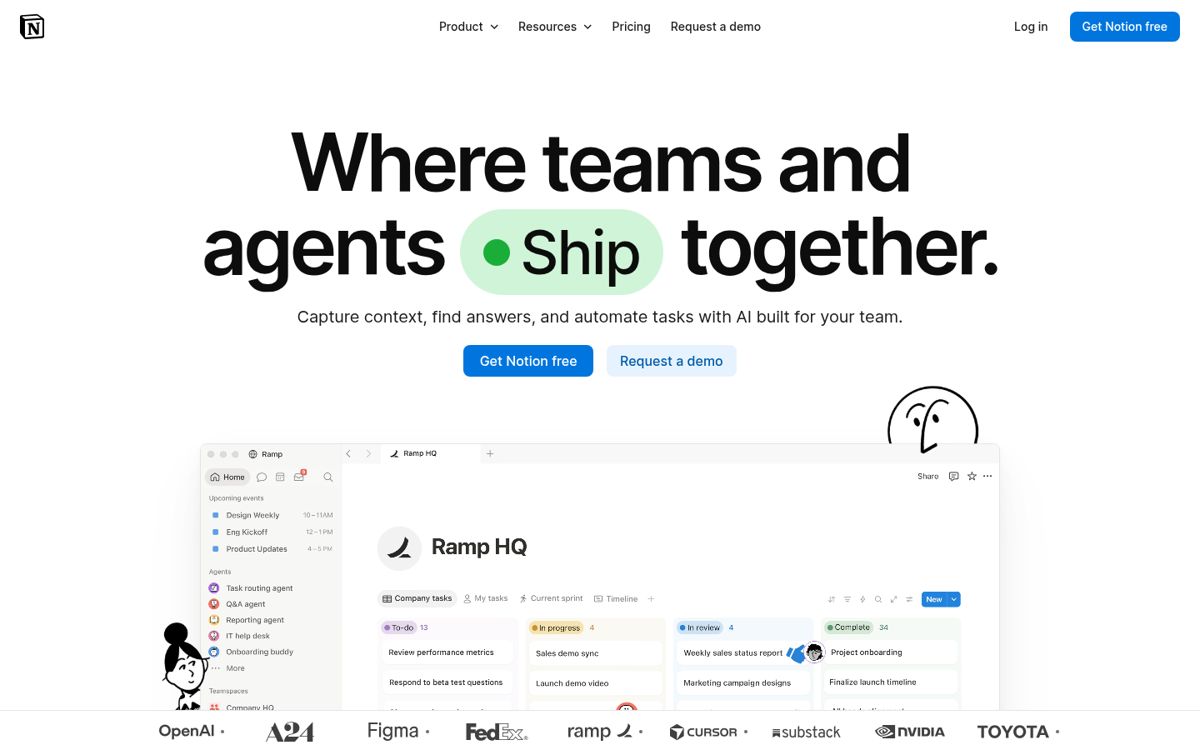
The real product UI sits directly under or beside the headline instead of an illustration.
Best practiceShow a real, readable product state cropped to the feature the headline promises; avoid fake dashboards.
See it in
Every entry grouped by the industry it serves and by the UX patterns we saw in our captures. Use it to answer “how do other devtools sites do pricing?” or “who uses a search-first gallery?”. The groupings, pattern notes and tips are our own analysis.
Five sectors, each split into the exact industry label on the entry. The summary line is counted from the tags on these entries.
Products sold to engineers: platforms, launchers and agent tooling.
Team software where the marketing site has to explain a product people use daily.


Products for individuals, plus payments and marketplaces.
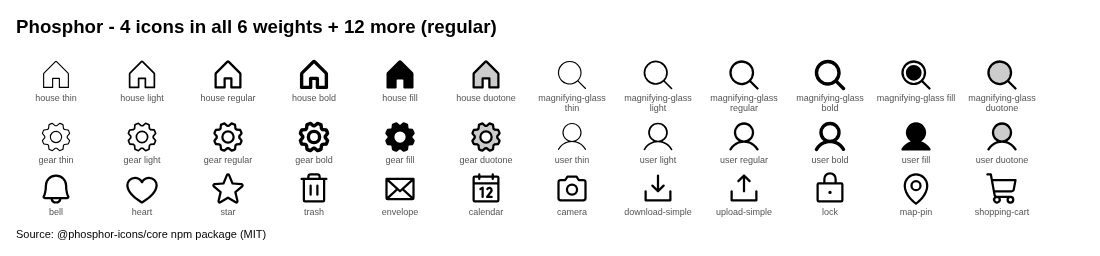
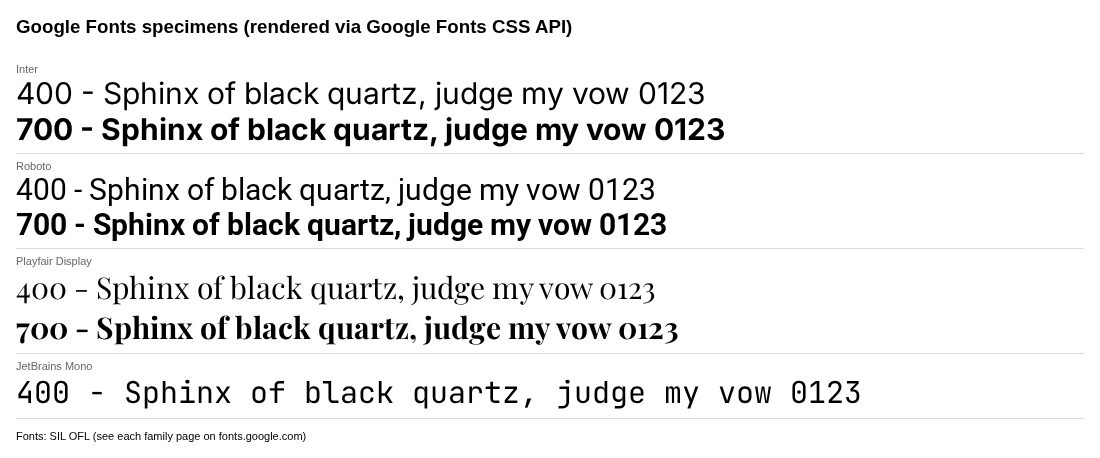
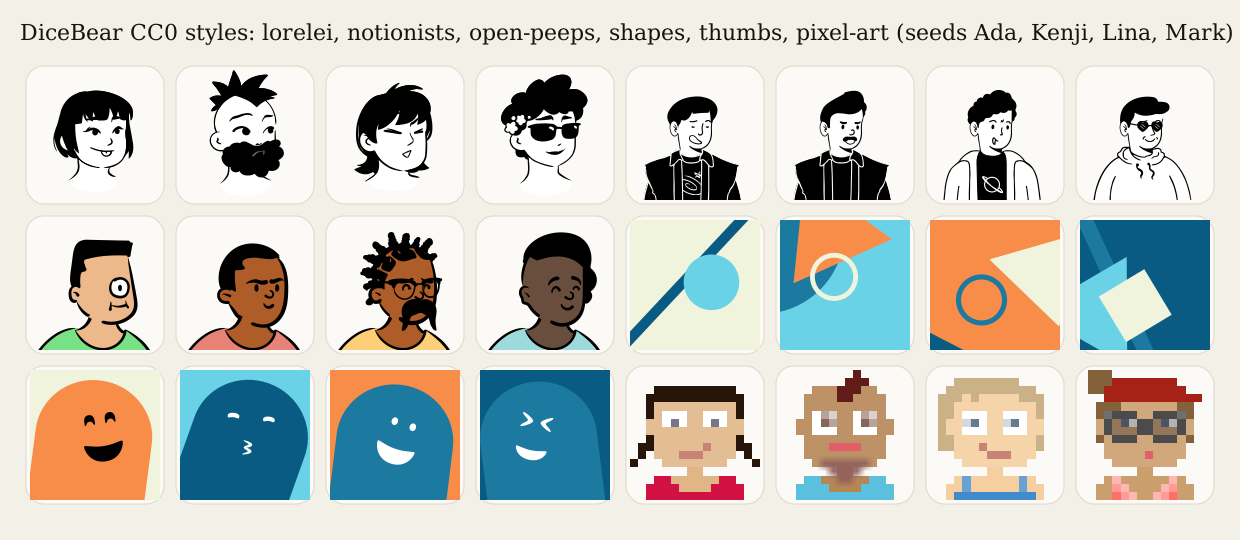
Libraries you take assets from: icons, fonts, avatars, illustrations and galleries.


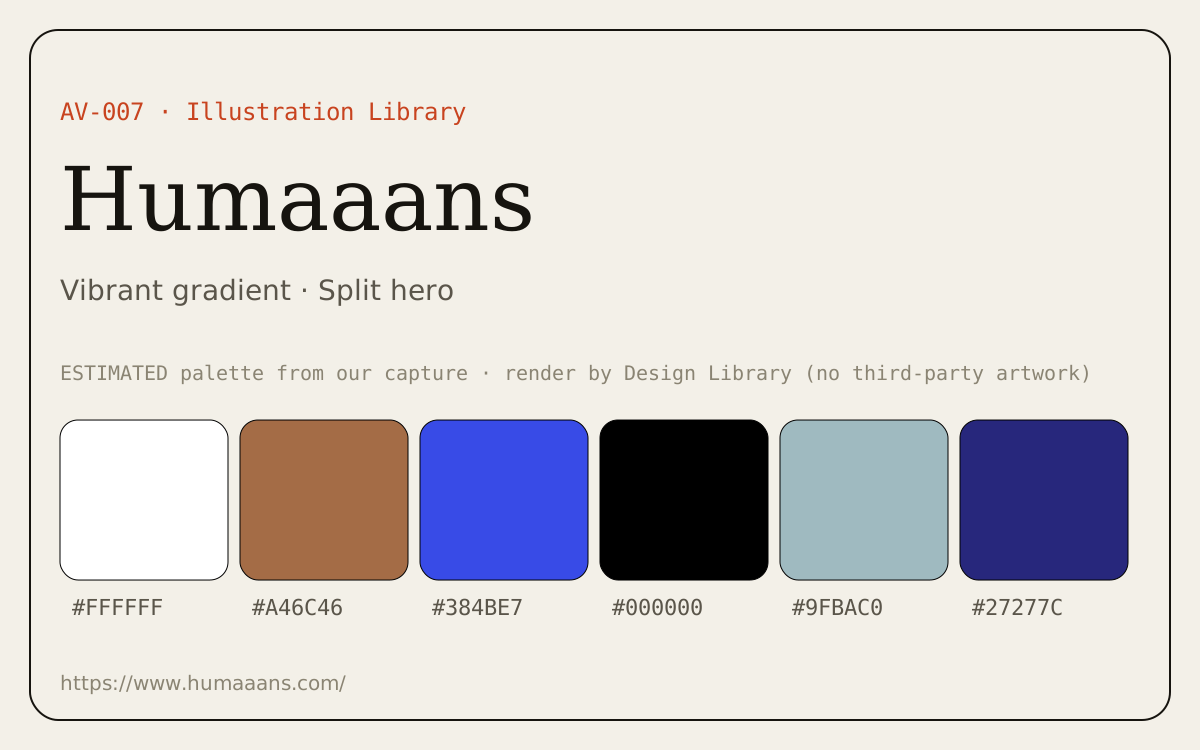
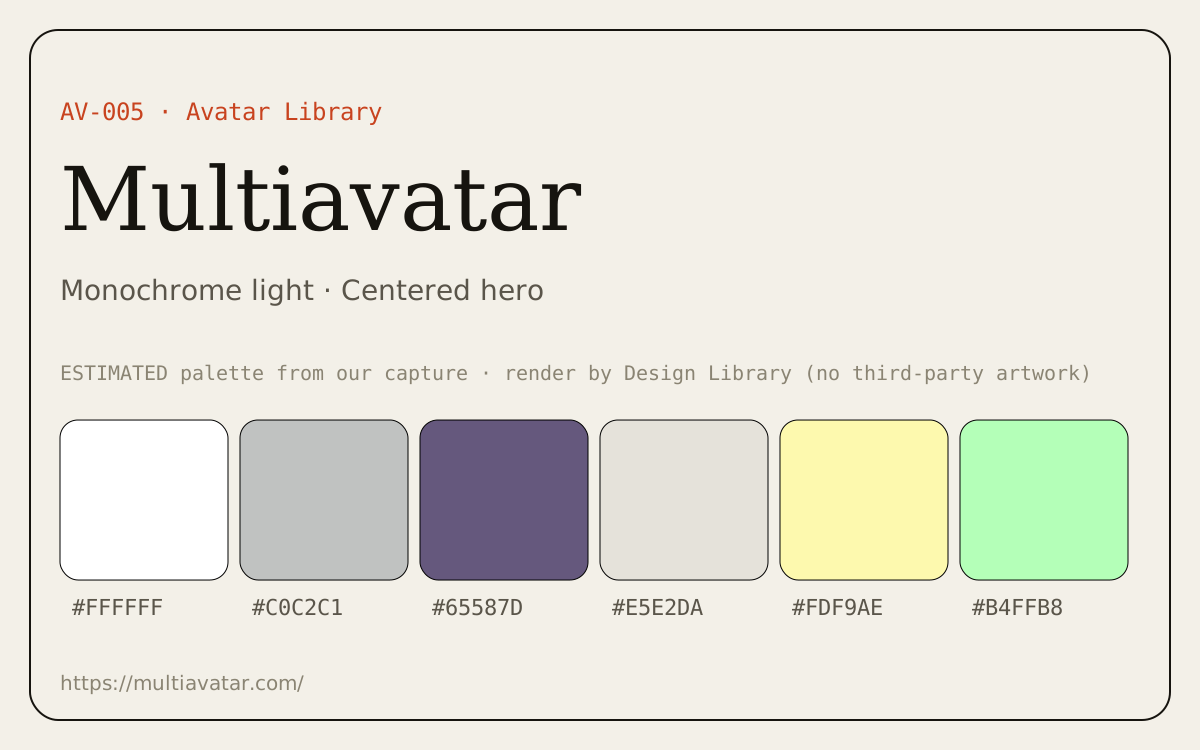
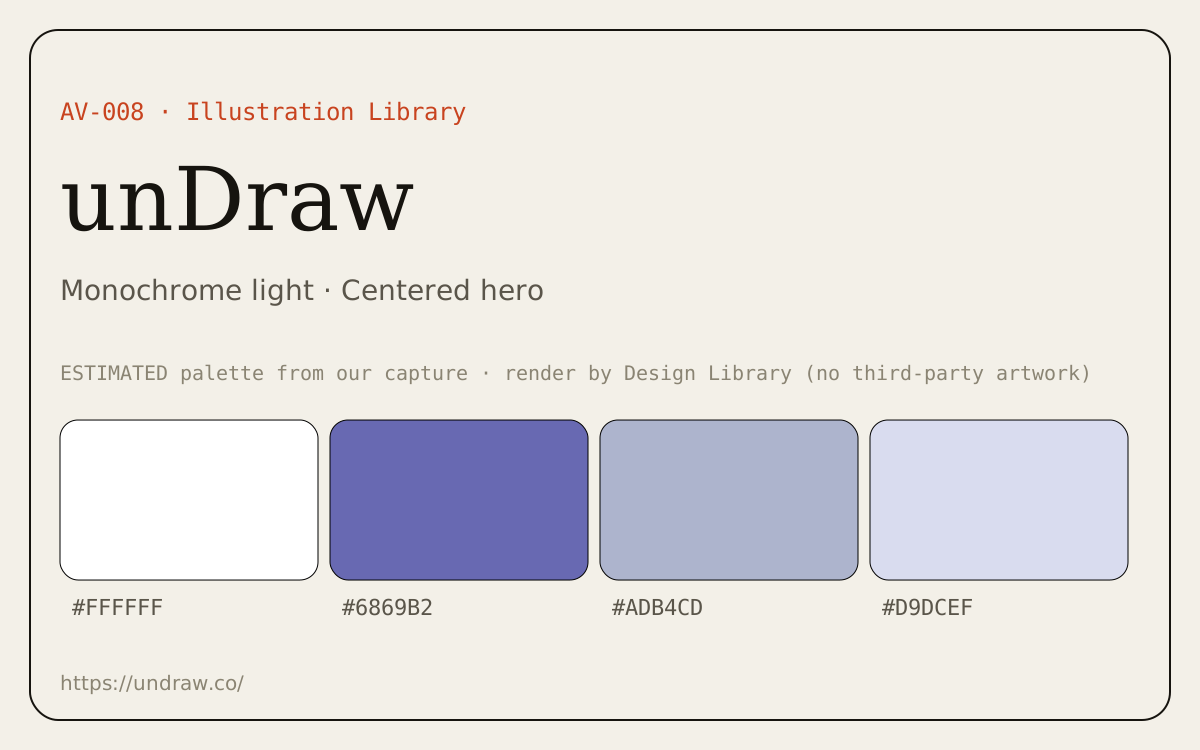
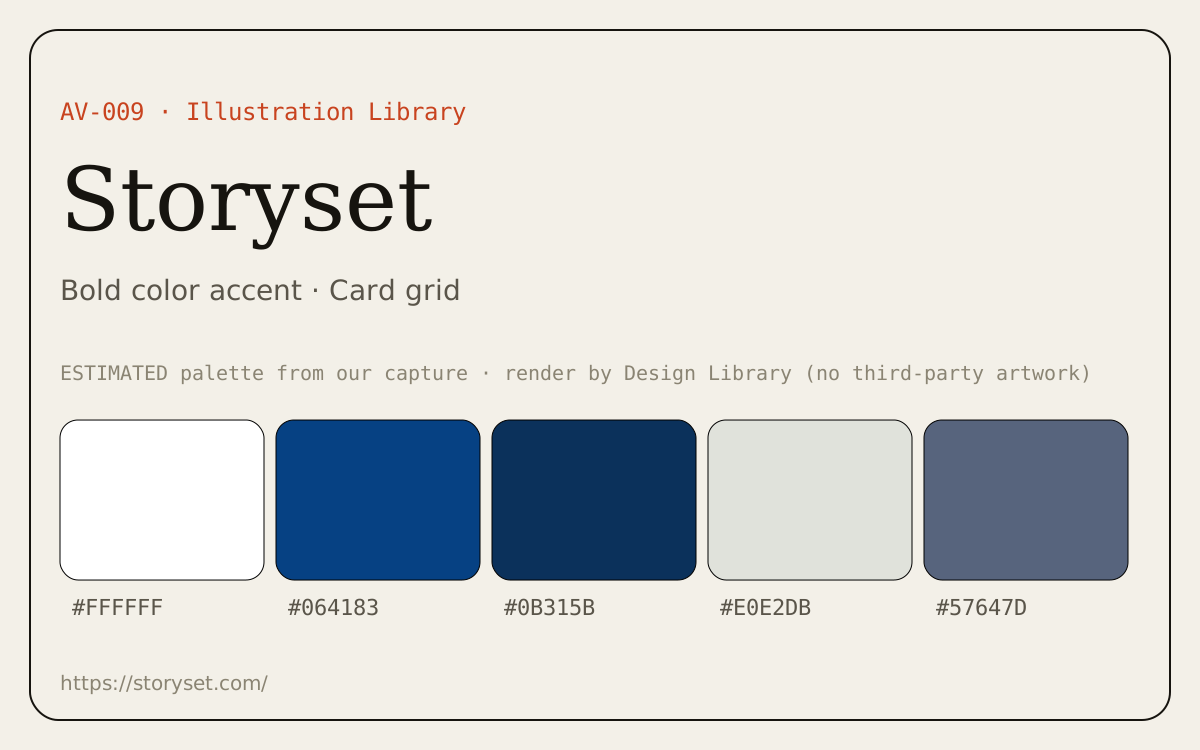
Platform design systems and teaching material.
The patterns tagged on entries, grouped into five families. Each card says what the pattern is, one best practice (our guidance, not a quote from the source) and where to see it in the library.
How the first screen states the promise.
The real product UI sits directly under or beside the headline instead of an illustration.
Best practiceShow a real, readable product state cropped to the feature the headline promises; avoid fake dashboards.
See it in
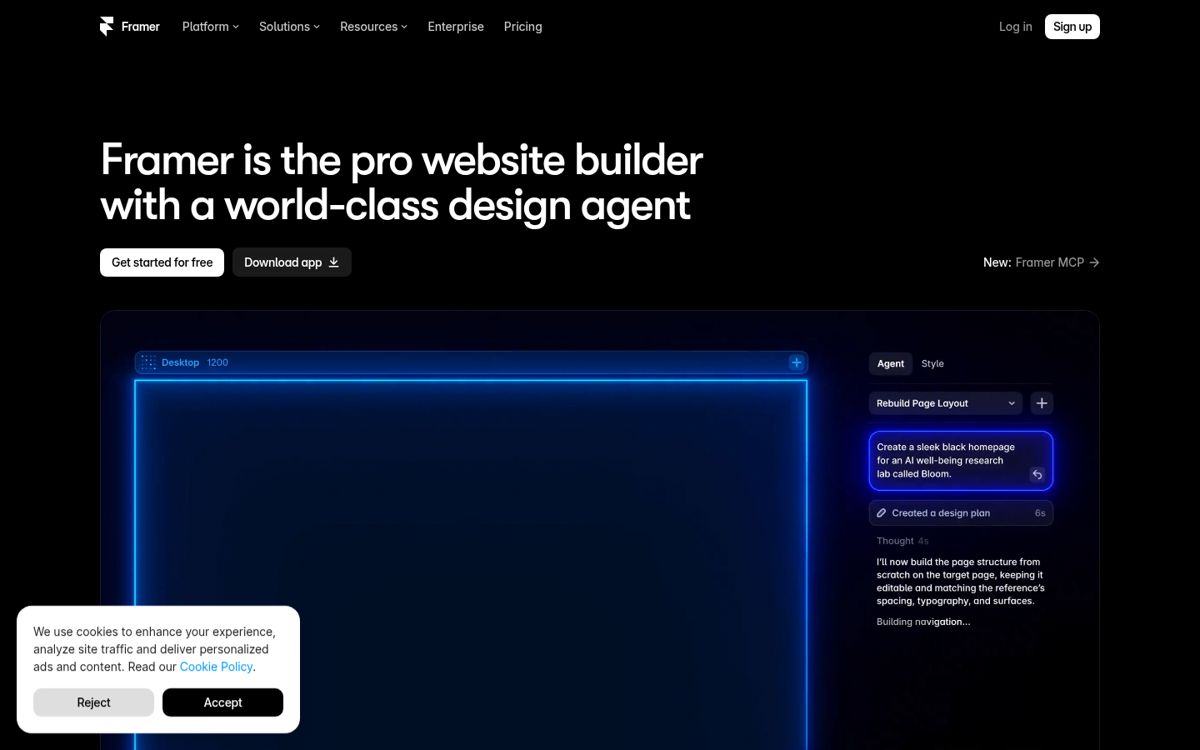
Headline and actions on one side, proof (product, code or media) on the other.
Best practiceKeep the text column narrow (about 45–60 characters a line) and stack the proof under the text on phones.
See it in
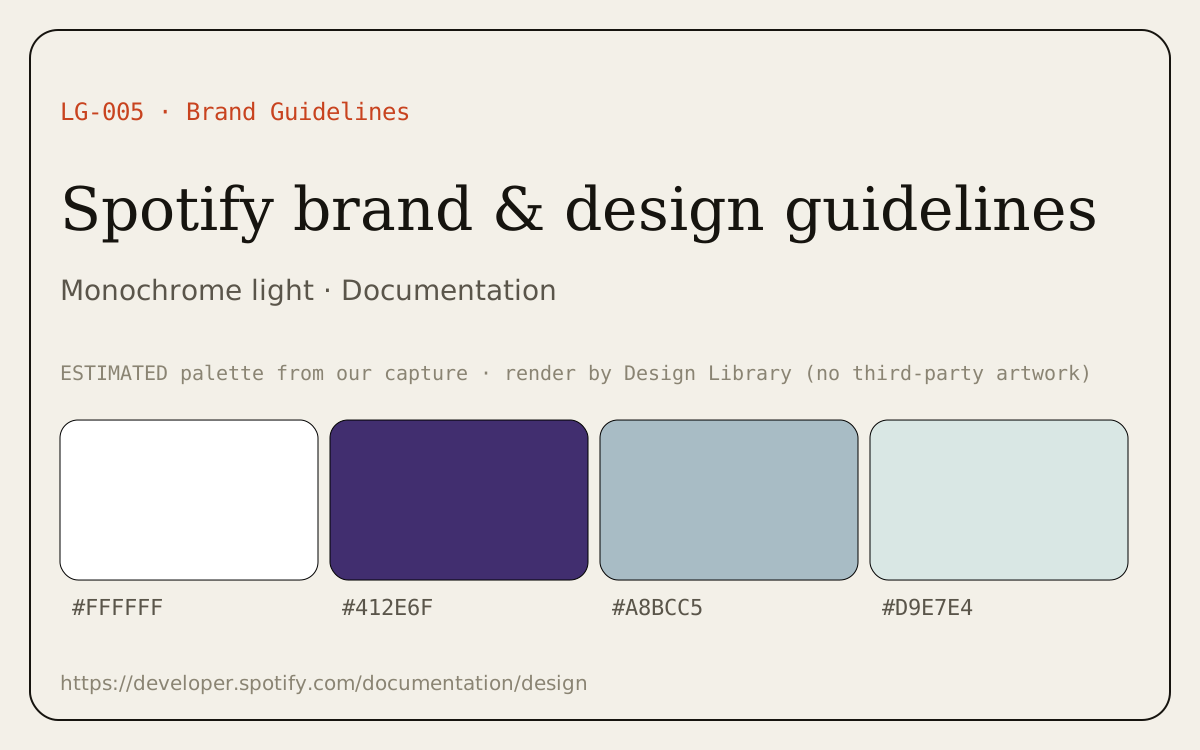
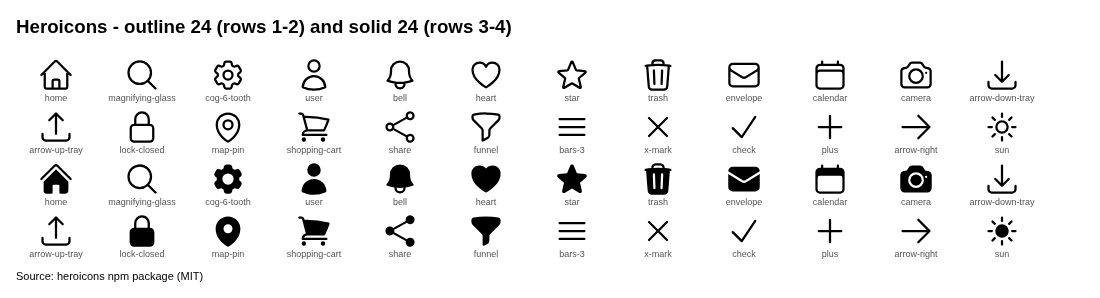
A split hero where the proof is the library’s own artwork.
Best practiceLet the artwork be the product itself (the icons or illustrations you offer), not generic decoration.
See it in
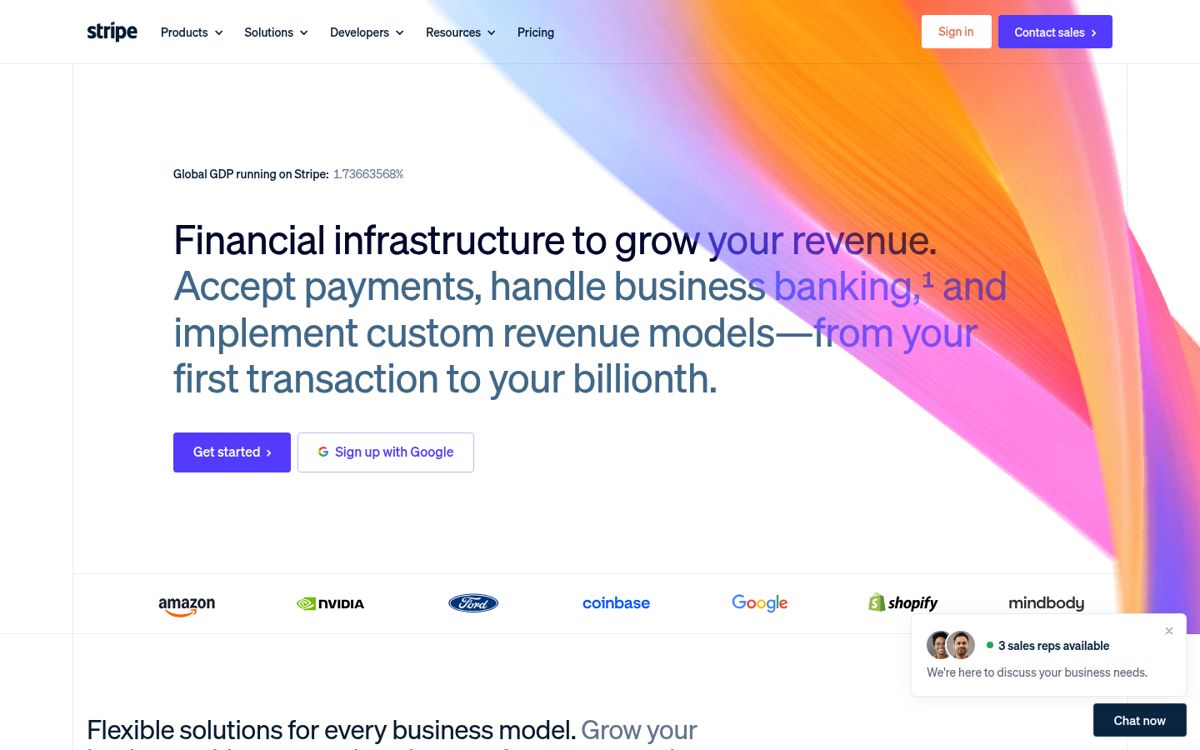
One centered headline, one supporting line and at most two actions.
Best practiceUse one primary action and one quieter secondary; let the next section carry the detail.
See it in
A centered hero with an illustration below or around the text.
Best practiceKeep the actions above the artwork so they stay in the first screen on mobile.
See it in
How a catalog of many items is browsed.
A search box is the main entry point, with results as a grid.
Best practiceFocus the search on load (or bind a shortcut), show results as you type and keep an empty-state suggestion list.
See it in
A large uniform grid of thumbnails.
Best practiceKeep thumbnails the same ratio, show the minimum text per card and put filters above the grid.
See it in
Facets (category, style, license) in a side column next to results.
Best practiceShow result counts per filter, keep chosen filters visible as removable chips and collapse the sidebar into a sheet on phones.
See it in
Items grouped into named categories you browse into.
Best practiceName categories by what people look for, show a count and a preview for each.
See it in
Each item is shown rendered (e.g. a font set in sample text) rather than as a name.
Best practiceLet people type their own sample text and change size; render at real UI sizes.
See it in
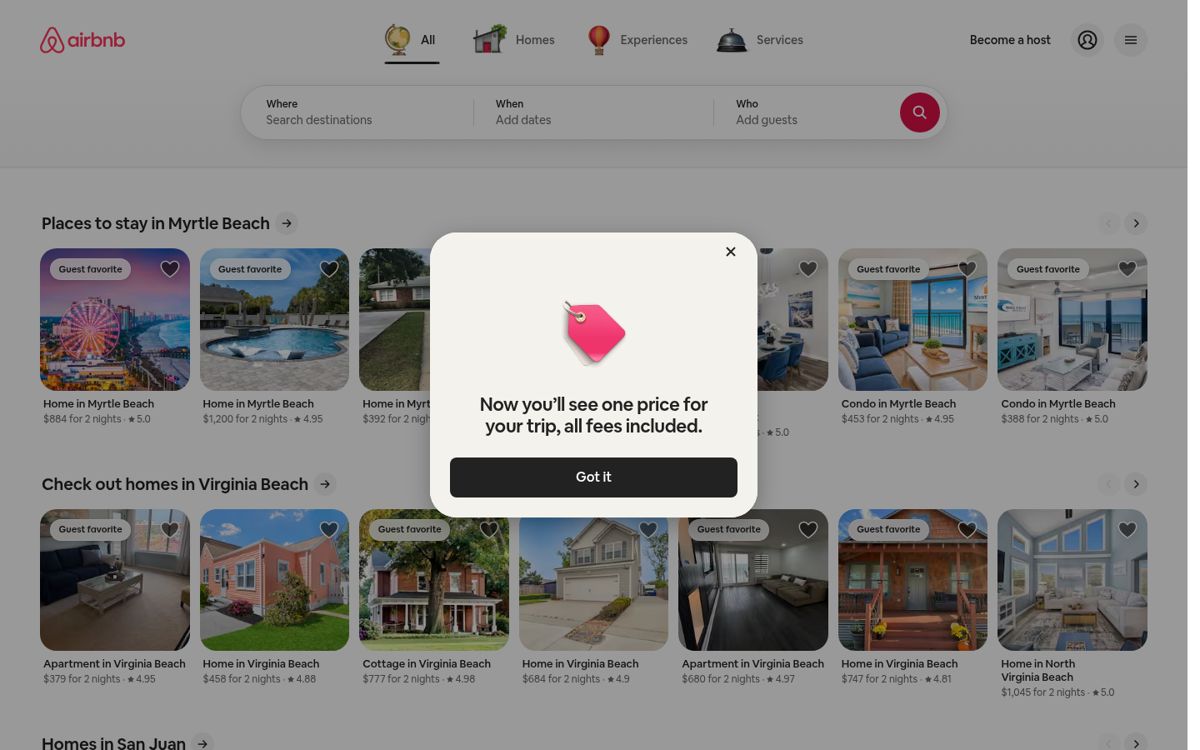
Results shown on a map next to a scrollable list, kept in sync.
Best practiceHighlight the map pin when a list item is hovered or focused, and give mobile a list/map toggle.
See it in
Assets offered as cards with a direct download each.
Best practiceState format and size on every card and bundle everything in one ‘download all’.
See it in
Interactive pages where people make something.
Change options and see the output update live, then copy or download it.
Best practiceStart from a good default, show the exact URL or code for the current settings and make reset obvious.
See it in
Combine parts (heads, bodies, poses) into a custom result.
Best practiceOffer a randomize button, keep parts on one consistent grid and preview at final size.
See it in
Assets previewed inside realistic UI instead of on a blank canvas.
Best practicePreview in the places they’ll really be used (avatars in a comment list, illustrations in an empty state).
See it in
Pricing, sign-up and the first minutes in the product.
Plans side by side with prices and a feature list.
Best practiceLimit to three or four plans, mark one as recommended and keep the full comparison table below the cards.
See it in
The first sign-up screen: provider buttons, email field or both.
Best practicePut the most-used provider first, keep email as a clear fallback and link ‘Log in’ for returning users.
See it in
A long form split into short steps with progress shown.
Best practiceShow progress, keep one topic per step and never lose entered data when someone goes back.
See it in
A short sequence of first-run screens that sets up the workspace.
Best practiceAsk one thing per screen, make optional steps skippable and end on useful content, not an empty page.
See it in
An onboarding step that offers to connect other tools.
Best practiceMake it skippable and show the two or three most popular integrations first.
See it in
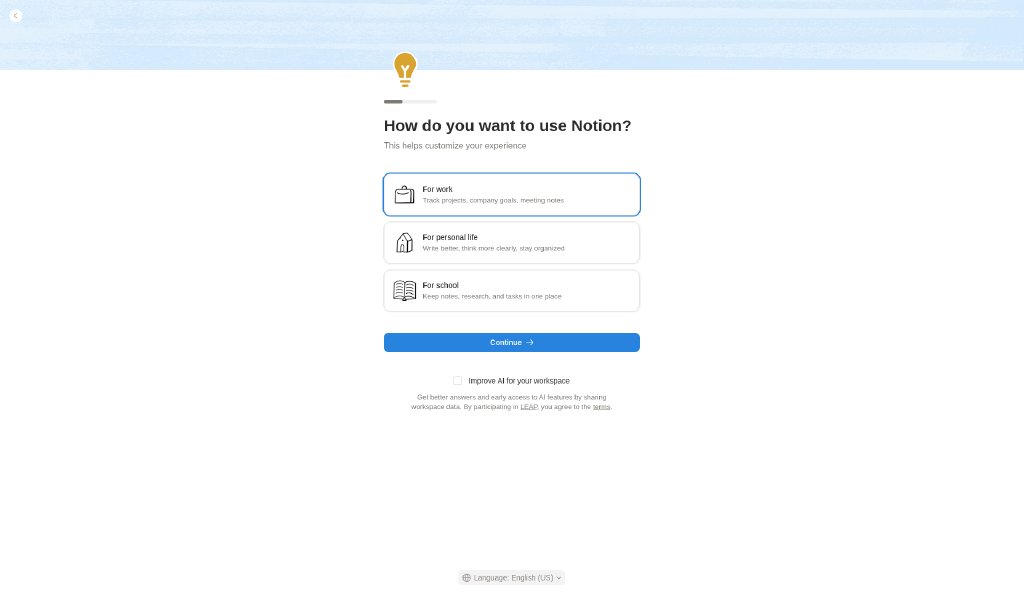
A question about what the user plans to do, used to tailor setup.
Best practiceKeep options short and visual, allow ‘other’ and visibly use the answer in the next screen.
See it in